

The PC is an excellent choice for gamers, especially those who want the best performance and graphics fidelity. And Windows 11 is the best option for PC gamers, whether you’re a hardcore gamer or just someone who occasionally engages in more casual gaming pursuits
Windows 11 comes with an XBOX app that integrates with popular third-party game stores like Steam and the Epic Games Store and Microsoft’s vast videogame ecosystem, and a Game Bar that helps you capture screenshots and video clips, interact with your friends on XBOX Live, and more. There’s even a controller-optimized XBOX Mode that dramatically reduces background re
Defaults
Windows 11 is configured to meet the needs of casual and mainstream gamers by default
- The XBOX app is bundled with Windows 11 and integrates with your Microsoft account, allowing you to find and install XBOX PC games, including, if you’re a subscriber those on Game Pass, access your game libraries across XBOX PC and popular third-party stores, and more.
- The Game Bar is also bundled with Windows 11 and can be toggled on at any time so you can access gaming-related utilities without leaving the game you’re playing.
- Screen captures and video clip recordings are saved to your Videos folder in a Captures subfolder with reasonable default settings for most.
- Windows 11 automatically configures an XBOX Wireless Controller so you can begin playing immediately.
- The new XBOX Mode is available but not enabled by default.
Customize
Before getting started with gaming on Windows 11, you should review and, if needed, configure any gaming-related settings to your needs
Customize Windows 11 gaming features
To get started, open the Settings app and navigate to Gaming
The following settings are available here:
XBOX mode
New to 2026, XBOX Mode in Windows 11 provides a console-like, controller-optimized, full-screen experience for gamers
Windows 11 reports that this feature is “enabled” by default, but really it’s just “available” by default: You enable this mode, which replaces the Windows 11 Desktop experience with a full-screen XBOX app experience, in the XBOX app
Most people should leave these settings as-is. But if you use XBOX Mode regularly, you might consider configuring “Show XBOX mode in Task View” to “On” to make that easier; otherwise, you will need to toggle XBOX Mode in the XBOX app
If you have an XBOX gaming handheld, you can use XBOX Mode full-time: These PCs have two unique options, “Enter Xbox mode on startup” and “Choose home app”–which has Xbox and Desktop choices–to make that happen
Game Bar
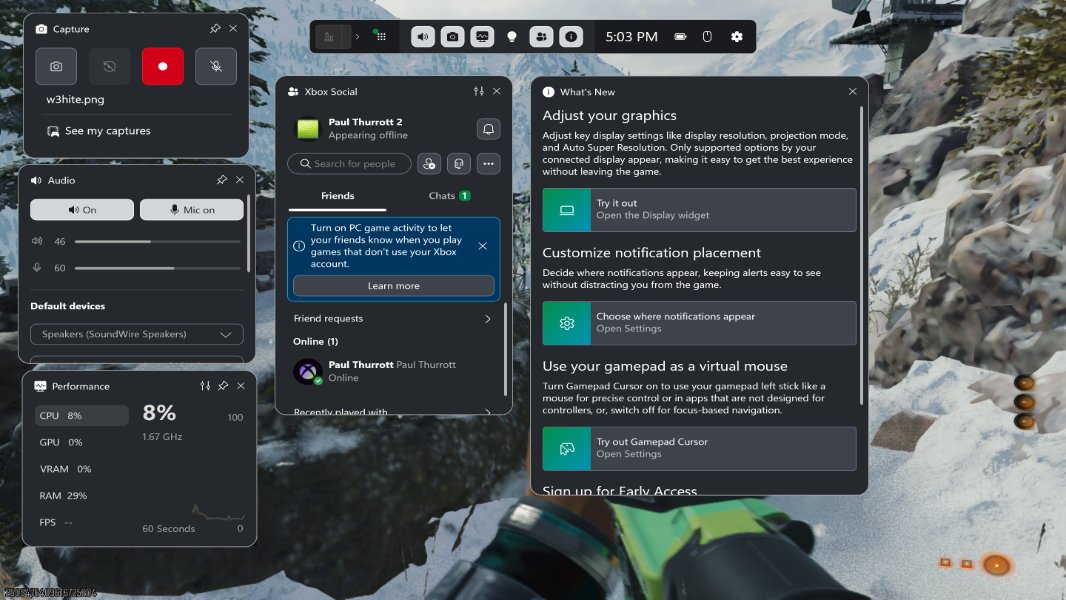
You can enable a special overlay called Game Bar while in a game to capture screenshots and video clips, chat with friends, and more
Keyboard shortcut: You can quickly toggle the Game Bar by typing Windows key + G at any time. It works with the Desktop and any app, not just games
If you’re going to use Game Bar, and I do recommend it, even for those gamers who play outside the XBOX PC ecosystem, then the default settings here are appropriate for most: Game Bar is enabled and the “View” and “Menu” buttons on an XBOX Wireless Controller are configured to work similarly to how they work when used with an XBOX console
Captures
This settings page is used to configure how Windows captures screenshots and video clips while you play games. There are options for determining the location for saved screenshots and clips, whether Windows should automatically record all gameplay sessions in the background, and the like
Game Mode. Windows 11 supports a now-vestigial feature from the pre-XBOX Mode days called Game Mode that improves performance and minimize distractions outside the game while you are playing. There’s little in the way of configuration here. If your PC supports this feature, you can simply toggle Game Mode on or off. (It’s on by default.)
Customize your display and graphics for gaming
This is a complex topic that’s further complicated by the variety of third-party utilities that accompany dedicated graphics cards and other hardware that hardcore gamers prefer. But thanks to the miracle of personal technology, even mainstream PCs and laptops today are capable of playing impressive, modern games with high-quality graphics and performance. As such, Windows 11 has some useful settings you can configure to optimize the gaming experience, even if the PC you’re has integrated graphics.
These options are available in the Settings app
Refresh rate. In System > Display > Advanced display, enable a 90, 120 Hz, or higher refresh rate and “Dynamic refresh rate” if available. Then, in System > Display > Graphics, expand “Advanced graphics settings” and make sure “Hardware-accelerated GPU scheduling” and “Variable refresh rate” are both enabled
HDR. In System > Display > HDR, enable “HDR” if available. Then, enable “Auto HDR.”
Automatic super resolution (Auto SR). Available only on Windows 11 on Arm PCs in System > Display > Graphics, ensure this option is enabled. Note that you cannot enable Auto SR and HDR at the same time; you want Auto SR enabled
Custom settings for applications. Though this option is available on all PCs, it’s only useful for gaming on Windows 11 on Arm PCs. In System > Display > Graphics, locate the “Custom settings for applications” and then inside that, any installed games. For each, expand the game and make sure “GPU preference” is configured to the highest performance option
Tip: Gaming on a Windows 11 on Arm-based PC with Qualcomm Snapdragon X or X2 chipset isn’t ideal because almost all modern titles will run in emulation, not natively. But you may be surprised how well many games do work, and you can use Qualcomm’s Snapdragon Control Panel to optimize games further than is possible with the built-in Windows 11 Settings
Connect and configure an XBOX Wireless Controller
While many traditional gamers still use a keyboard and mouse to play games on their PCs, you can also use an XBOX Wireless Controller for a simpler, more console-like experience
Configuration is automatic: When you connect an XBOX Wireless Controller to your PC wirelessly using Bluetooth ore. But you can further customize how the controller works–and download and install firmware updates–by using the the XBOX Accessories app, which is available for free from the Microsoft Store
Here, you can perform the following actions:
- Update the controller firmware. Before doing anything else, ensure that your controller’s firmware is up-to-date. To do so, navigate to “More options” (“…”) > Update and then update the controller if needed.
- Configure. Click this button to access the controller configuration page, where you can create custom profiles, map buttons, swap the thumb esticks, and perform other customizations.
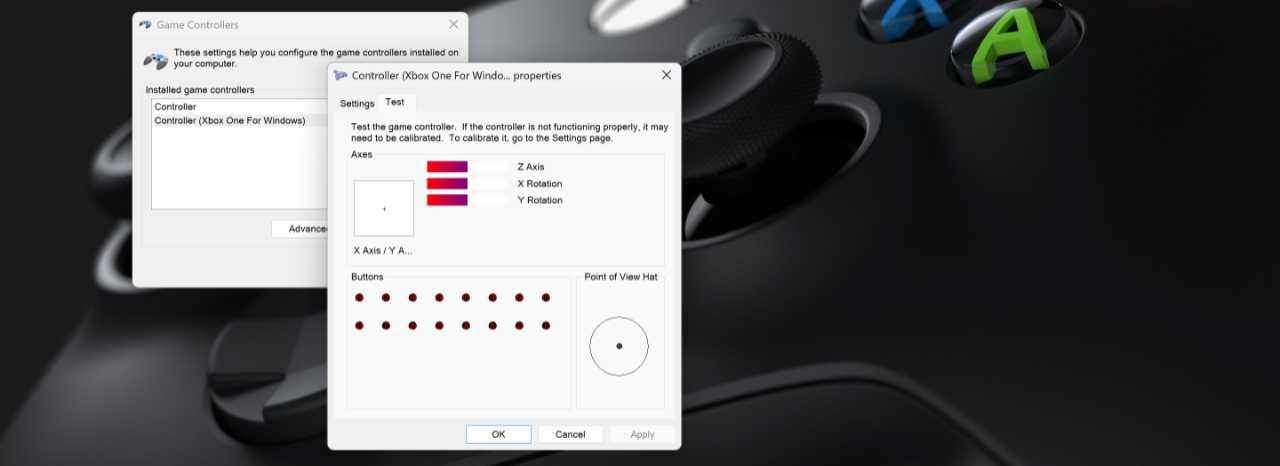
Windows also includes a legacy Game Controllers control panel that can be used to test and calibrate the buttons and controls on XBOX and third-party game controllers
Game Bar
The Game Bar is an overlay that appears over whichever game you’re playing and provides various game-related features–capturing screenshots and video clips, adjusting hardware configurations, chatting with friends, and so on–ndividual windows in the default Game Bar view, and you can configure which appear on-screen and where
To display the Game Bar, type Windows key + G or press the “XBOX” button on your XBOX Wireless Controller. (This is the middle, white, and lit-up button with the XBOX logo.) The interface consists of the Home Bar–a toolbar-like main window, centered at the top of the screen and several widgets. And it works like a toggle: If you type Windows key + G, click anywhere else on-screen, or press the “XBOX” button, the Game Bar disappears. You can also press the “B” button on your controller to hide the Game Bar.
The Home Bar is the only non-movable window in Game Bar. It’s a floating toolbar that offers several buttons and a few non-interactive icons in a single row in the top middle of the screen. Among the items here are:
- Controller Bar/Home Bar. This button toggles Game Bar between its normal display mode and a more minimal view called Controller Bar that’s easier to navigate using an XBOX Wireless Controller.
- Widget Menu. Click this button to display the list of widgets you can display with the Game Bar, along with a “Customize menu” (gear) icon. You can also use the “Favorite”/”Unfavorite” (star) icon next to a widget to toggle the display of that widget sub-window on or off.
- Widgets. The center of the Game Bar displays a Taskbar-like set of icons representing your favorite widgets–a configurable selection of widgets you want to see each time the Game Bar appears–an any other open widgets. If needed, it will display “Show preview widget” and “Show next widget” buttons on either side to aid navigation.
- Clock. Because many PC games are played full-screen, it’s likely that the clock in the Windows 11 Taskbar will be hidden during game play. So this non-interactive icon provides a quick way to check the time in-game.
- Battery status. As with the Clock icon, Battery status appears so you can see whether your laptop is plugged into power and charging, and, if not, what the remaining battery life is.
- Enable/disable click-through. This interactive button–it resembles a computer mouse–toggles click-through, an esoteric feature that determines how mouse button clicks work when the Game Bar is displayed. This feature is implemented on a per-widget basis and only makes sense to enable for certain types of games, like strategy titles with many on-screen controls. For this reason, it’s disabled by default, meaning that mouse clicks do not pass through compatible widgets to the underlying game. When enabled, mouse clicks will pass through to the game without closing Game Bar.
- Settings. This button, which resembles a gear, displays Game Bar setting when clicked.
Customize Game Bar
If you’re going to use Game Bar at all, you should take a few minutes and configure it to your preferences. There are several main areas of customization:
- Which widgets.You can choose which widgets appear when you open Game Bar by favoriting the ones you like in the Widgets menu and then toggling each on/off in the Home Bar.
- Where those widgets are on-screen. By default, each widget appears as a unique sub-window when Game Bar is displayed. You can’t arbitrarily resize any of them, but you can reposition each on-screen by dragging and dropping with your mouse, and Game Bar will remember those placements each time it appears.
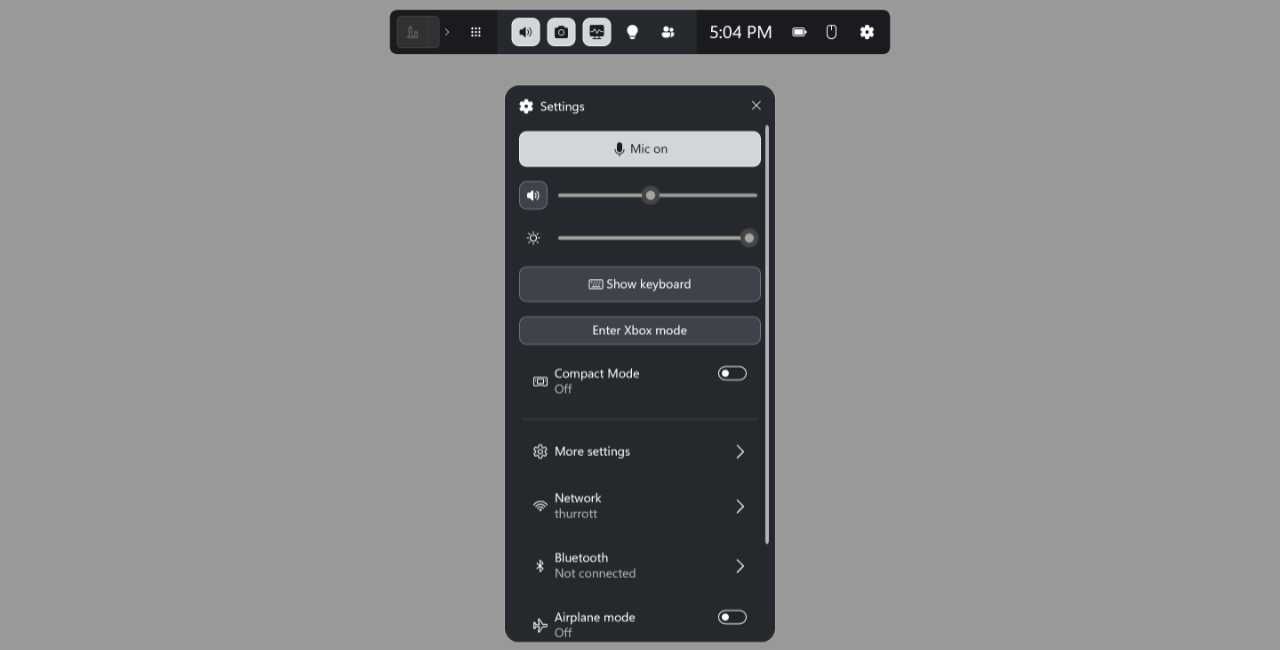
- Mode. In addition to its normal display, the Game Bar supports two other display modes: The controller-friendly Controller Bar and a Compact Mode, also controller-friendly, that displays just one widget on-screen at a time, reducing clutter.
- Game Bar settings. Click the “Settings” (gear) icon on the Home Bar to display Game Bar settings and its rather impressive set of configurable options, many hidden behind the “More settings” link.
Widgets
Widgets are central to the Game Bar experience. You can configure which widgets–your favorites–appear on-screen and where. And you can optionally pin widgets so that they always appear on-screen–over games–even when Game Bar is not displayed
Key widgets included with Game Bar include:
- Capture. This handy overlay is the front-end for all of your game screenshot and video recording endeavors.
- Audio. This overlay lets you configure the devices Windows uses for audio input–typically a microphone–and output, which is typically speakers or headphones. These capabilities may seem superfluous since you configure these devices globally in Windows. But the Audio widget can be handy if you want to use a different device while gaming. And it also lets you configure the volume level for that device globally or per app/game.
- Game assist.
- Performance. This widget provides a real-time peek at your PC’s CPU, GPU (graphics), VRAM (video RAM), and RAM utilization, and it displays the frequency at which games animate in FPS (frames-per-second). Those who like to tinker with specific in-game settings can pin this widget so they can always see the real-world impact of those changes as they playt.
- XBOX Achievements. When you’re playing an XBOX PC game–that is, a game you’ve installed through the XBOX app–this overlay displays information about your progress obtaining in-game Achievements. You can filter the view to show only those Achievements that are rare and/or not yet obtained, and to display the Achievements by progress, Gamerscore, rarity, or commonality.
- XBOX Chat. This overlay provides a lightweight way to chat with one or more friends on XBOX Live while you play. This chat is text-based by default, but you can also use this widget to start an XBOX party chat that supports text and voice.
Add a widget to favorites
The Game Bar is configured with a set of favorites–Widgets like Audio, Capture, Performance, and others–by default. But you can configure any widget as a favorite–or remove a widget from favorites–at any time. These favorites appear as icons in the Home Bar and, if enabled, on-screen as well
To do so, display Game Bar and click “Widget Menu.” Then, click the “Favorite”/”Unfavorite” (star) icon to the right of any widget you wish to favorite or unfavorite
Pin a widget so it’s always visible
Most widgets can also be pinned so that they appear over any game you’re playing, even when Game Bar is hidden
To pin a widget, open Game Bar and then locate the “Pin” button–it resembles a pushpin–to the left of its “Close” (“X”) button. Click “Pin” to toggle it on (or off)
When you do so, the widget remains on-screen until you unpin it
Controller Bar and Compact Mode
By default, Game Bar displays with a fix Home Bar and floating widget sub-windows. But you can optionally configure it to appear differently using two modes, Controller Bar and Compact Mode, each of which is optimized for specific use cases.
Tip: Controller Bar and Compact Mode are similar experiences, and either is a better choice than the default Game Bar if you game using a controller. You should experiment with both before choosing one over the other
Controller Bar
If you play games on your PC with an XBOX Wireless Controller on a laptop or desktop PC, you may be interested in using Controller Bar. In this mode, Game Bar retains the default multi-window layout but also displays your three most recently played games and installed game launchers in the Home Bar

You can toggle Controller Bar on from the default Game Bar: Just click the left-most button in the Home Bar, called “Controller Bar.” When you do, there’s a new “Home Bar” button on the far left that lets you get back to the default Game Bar
You can also use Controller Bar by default: Open Game Bar settings, navigate to Shortcuts, and enable the option “Open Controller Bar automatically when a controller is connected” in the Controller section
Compact Mode
Like Controller Bar, Compact Mode is optimized for use with a controller. But it’s also simpler than the default Game Bar experience, as it displays only a single widget at a time, and the interface uses larger, more easily seen on-screen elements that take on more of a full-screen look, with interactive buttons on the top-left and non-interactive displays on the top-right
To enable Compact Mode, open Game Bar, click “Settings,” and then enable the “Compact Mode” toggle under General. In this mode, you can continue navigating with a keyboard or mouse, but it’s simple enough for the controller: You use the Left Bumper and Right Bumper to navigate left and right, respectively, through the available widgets–as determined by those you favorited earlier–and then press Up or Down on the controller’s d-pad (direction pad) to move through the available controls on the selected widget.
To select a control, just click the “(A)” button on the controller. To exit Game Bar in Compact Mode, click “(B)”
The unique “Home” widget in Compact Mode provides quick access to recently played games and to game launchers like XBOX (which is, of course, configured by default), Battle.net, EA Play, Riot Games, Steam, and others
Tip: Most Game Bar functions work normally while its in Compact Mode. But there are a few missing features: You can’t pin a widget in this mode or favorite/unfavorite widgets, for example
XBOX App
The XBOX app looks and works similarly to the Dashboard user interface on XBOX videogame console. It lets you install and play PC games you’ve purchased from XBOX and third-party game stores like Steam and Epic Games Store, install and play PC games provided with a Game Pass subscription, and stream XBOX console games from the XBOX Cloud Gaming service (which requires a Game Pass subscription)
Tip: The Xbox app replaces the Windows 11 Desktop as the core user interface when you enable XBOX Mode
The XBOX app is straightforward and easily understood. It’s a modern Windows 11-style app with a non-collapsible navigation bar on the left and a larger content area on the right. It provides the following experiences:
- Profile & settings. The top entry in the navigation bar represents your XBOX profile, and it displays a short menu when selected with options related to that profile, the app settings interface, and more. You can display and customize your XBOX profile by selecting “View profile” from the menu.
- Notifications. You can toggle the Notifications icon (which looks like a bell) next to the XBOX profiles entry in the navigation bar to display a Notifications pane that displays recent XBOX notifications in reverse chronological order.
- Home.
- Game Pass. Here, PC Game Pass and XBOX Game Pass Ultimate subscribers can find games associated with their membership and download them to their PCs.
- My Library. Here, you can find links to the XBOX-compatible games you’ve marked to play later, the XBOX PC-compatible games that are installed on your PC, the games you’ve installed from compatible third-party stores like Steam and the Epic Games Store, and the games that you’ve purchased in the past from XBOX.
- Cloud Gaming. XBOX Game Pass Ultimate subscribers can stream a selection of XBOX console games to their PCs using a service called XBOX Cloud Gaming. If you are such a member, you can access this service here.
- Store. Here, you can find XBOX-compatible PC games to purchase and download.
Most Recent. Games that are installed on your PC will appear in an Installed section in the navigation bar for quick access
Install queue. This entry displays the Manage installs screen, which lets you manage your installed games and follow the progress of any games that are downloading now to your PC
Customize the XBOX app
You should take a few minutes to examine the XBOX app’s settings interface. Among other things, the app has an annoying behavior where it will auto-launch every time you sign in to Windows 11 after you run it the first time. You can access the interface by clicking “Profile & settings” and then “Settings.”
A few options to consider:
App. Here, you can configure whether the XBOX app runs in a Compact mode, launches every time you sign in, and minimizes to the system tray instead of quitting like a good app when you close it. This settings page also has an “Offline permissions enabled” toggle, off by default, that you can enable if this is the PC you wish to use when playing XBOX PC games offline
Install Options. Here, you can determine where games are installed by default and two settings tied to game updates
Library & Extensions. If you install compatible third-party game stores like Steam and the Epic Game Store, they will be listed here and the games you installed from those stores will appear in the My Library view
Cloud Gaming. If you have an XBOX Game Pass subscription, you can use this settings page to configure the streaming quality and other related options
Xbox mode. This button in the upper-right of the app lets you enable XBOX Mode, as described later in the chapter
Store: Find XBOX-compatible games for your PC
As you probably know, you can use the Microsoft Store app in Windows 11 to find, download, and purchase games, and some of those games are XBOX-compatible. Unfortunately, there is no Store view that will only show you XBOX-compatible games. Instead, you can use the Store view in the XBOX app to do so
This is straightforward: simply browse the Store area in the XBOX app and find a game you wish to download or buy
Then, select the appropriate “Get” (for free games), “Install” (for games available, or “Buy” button. When you do so, the title is added to the library associated with your XBOX account (which is your Microsoft account) and you are prompted to download the game
You can view this game and the other titles in your library by navigating to My Library, which is discussed in the next section
My Library: Manage your games
The My Library view in the XBOX app displays all the XBOX-compatible PC games that you have added to your library, by purchasing paid titles, downloading free titles, orthe chapter)
There are three main sections here
Play later. When viewing a game in your library, you can click “More options” (“…”) and then “Add to Play later” to add a shortcut to that title to a Play later playlist. These shortcuts appear at the top of My Library
My games. If you have purchased or downloaded XBOX PC games in the past, they will appear in this section so that you can install them on this PC. From here, you can select any game in your library, install it or add it to Play later
XBOX Game Pass: Subscribe to unlock a library of games
Microsoft offers several different XBOX Game Pass subscription services. Each offers a library of games you can download and install to your PC or Xbox console and other perks. But there are different price points, and as you might expect, the more expensive offerings provide additional advantages
You can compare XBOX Game Pass subscriptions on the XBOX website. But here’s a quick rundown of the versions that you can consider as a PC gamer:
XBOX Game Pass Essential
- Monthly cost: $9.99
- Library size: 50+ games
- Day One access to most XBOX studio games: No
- Cloud Gaming: Yes
PC Game Pass
- Monthly cost: $13.99
- Library size: 300+ PC games
- Day One access to most XBOX studio games: Yes
- Cloud Gaming: No
XBOX Game Pass Premium
- Monthly cost: $14.99
- Library size: 200+ games
- Day One access to most XBOX studio games: No
- Cloud Gaming: Unlimited, shorter wait times
XBOX Game Pass Ultimate
- Monthly cost: $22.99
- Library size: 400+ PC games
- Day One access to most XBOX studio games: Yes
- Cloud Gaming: Unlimited, shorter wait time, best quality
XBOX Game Pass is tied to your Microsoft account. If this is of interest, you can subscribe on the XBOX website
Find and play games from PC Game Pass or XBOX Game Pass Ultimate
If you subscribe to an XBOX Game Pass subscription, the Game Pass view in the XBOX app delivers an app store-like experience for browsing the game titles that are available to you. It highlights recently added games, personalized picks, and ways to browse by game publisher, franchise, indie games, and much more. You can also view the entire available library, pin a genre so it’s always available in this view, and bookmark games you want to play later
Tip: When you use the search box in the XBOX app, the results fly-down highlights the titles that are available to you through XBOX Game Pass
To view a game landing page, just select it from any view in Game Pass or in search results. Games you get through XBOX Game Pass will have a prominent “Install” button with “Included with GAME PASS” text above it, plus a “Play with Cloud” button if it’s available for streaming through Cloud Gaming
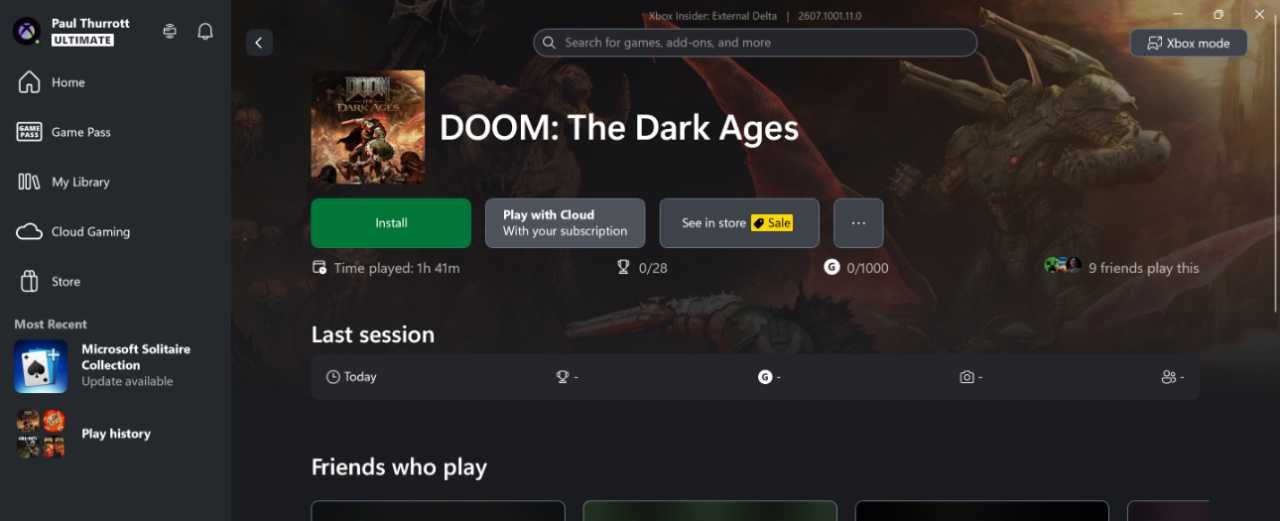
To install the game, click “Install.”
Some complex games will display a “Choose what to install dialog” so you can pick which parts of the game you want. Otherwise, a “Choose a drive” dialog will appear even if your PC has only a single drive. When you click through that, you can optionally have it create a Desktop shortcut and then install the game
You can view the download progress here or navigate to Install queue to get a more detailed look
Once the game downloads and installs, it will be available in Most Recent and My Library. Installed games also appear in Start so you can launch and play them without first opening the XBOX app
Cloud Gaming: Stream console games to your PC
Most videogames are installed and played locally on devices like smartphones, PCs, and videogame consoles. But Microsoft provides a Cloud Gaming service through XBOX Game Pass that also lets you stream games from the cloud–Internet datacenters–to devices of any kind. These games are not installed locally on your devices; instead, they rely on a constant Internet connection, as when you stream movies from services like Netflix or music from services like Spotify
If you have an XBOX Game Pass subscription, you can see the games you can stream by navigating to the Cloud Gaming view. This view is similar to the Game Pass view, in that it provides an app store-like experience for browsing the game titles that are available to you and highlights games in different ways
When you view a game landing page, it now displays a prominent “Play with Cloud” button. (Depending on the game, you may also see a similar “Install” button.)
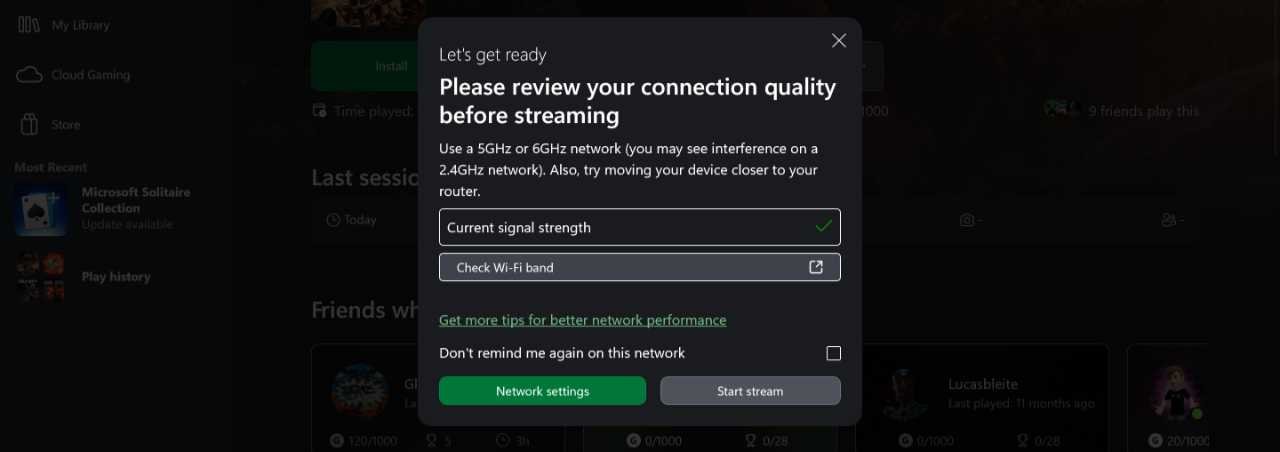
When you click “Play with Cloud,” the Xbox app will warn you if the game works best with a controller and there isn’t one connected to your PC. Otherwise, a dialog appears so you can review your network settings–Ethernet will provide the best experience, but if you’re playing over Wi-Fi, a 5 or 6 GHz network is better than 2.4 GHz–and then click “Start stream” to jump right in
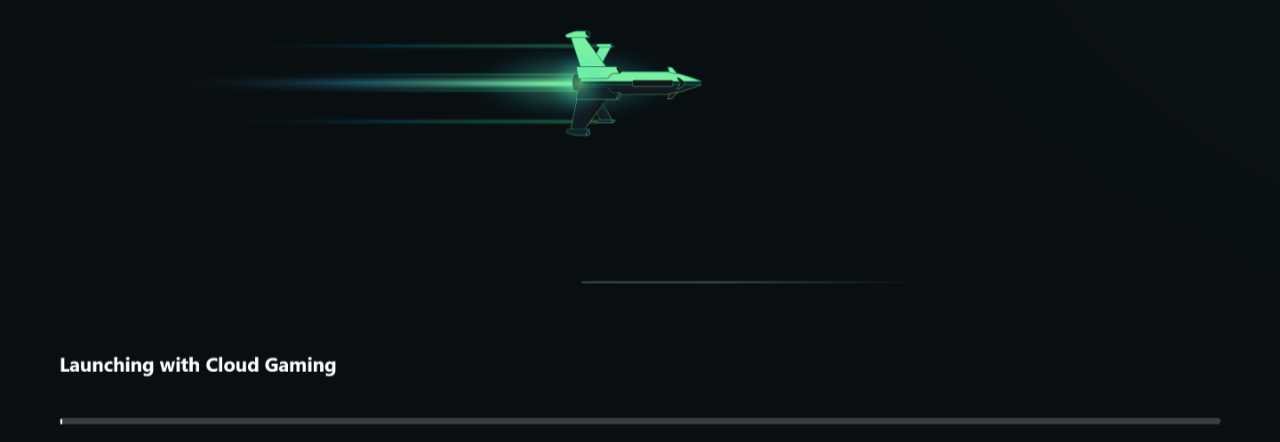
Well, not right in: First, a “Launching with Cloud Gaming” animation appears to distract you from the wait that occurs while you’re connected to the cloud. Then, an XBOX logo screen animates as well before the game is ready to play
Games streamedable, of course–though they run within the Xbox app and can perform more slowly than locally installed games, especially for more complex titles. Unique to Cloud Gaming titles is a Quick Actions Toggle that becomes visible when you mouse over the top left of the display
This toggle provides a full-screen stream menu , a way to trigger the Xbox Guide button without using a controller, and a little thumb control so you can drag the toggle to another position along the left screen edge. You can also click this thumb control to hide the Quick Actions Toggle
To quit the game, click “Show stream menu” in the Quick Actions Toggle, then click “Exit,” and then confirm when prompted
XBOX Mode
XBOX Mode is a full-screen, controller-optimized experience for gamers who want to wring the best-possible performance from their PC. When enabled, it replaces the traditional Windows 11 Desktop interface with a full-screen version of the XBOX app while aggressively reducing background processes and other system resource usage to give the PC’s processor and RAM more headroom. You can toggle between the traditional Desktop and XBOX Mode on the fly or use XBOX Mode exclusively if your PC is a gaming handheld or a gaming PC. And the Game Bar still works in XBOX Mode, using its controller-friendly Compact mode.
Enable XBOX Mode
To enable XBOX Mode, open the Xbox app and click the “Xbox mode” button in its upper-right. You will be prompted to connect a controller if it’s not already connected. You will also be told how to get back to the Desktop, which is useful information that’s also described below. Once you get past that, the XBOX app transforms into its Compact view, which only hints at the changes it has made to Windows 11 under the covers
There are other ways to enter XBOX Mode, too:
XBOX button. You can also toggle XBOX Mode on by pressing and holding the “XBOX” button on your XBOX Wireless Controller if you configured the option “Show XBOX mode in Task View” to “On” in Xbox mode settings as described earlier in this chapter. This displays Task view, from which you can now access an “Xbox mode” thumbnail next to the virtual desktops
Game Bar. The Game Bar has an “Enter Xbox Mode” button you can use to toggle XBOX mode on
Keyboard shortcut. You can also type Windows key + F11 to enter XBOX Mode
In XBOX Mode, the XBOX app user interface can be used entirely via the XBOX Wireless Controller, though you can, of course, continue using your keyboard and mouse too. You can navigate left, right, up, and down using the D-pad or Left stick, select an item by pressing “A,” navigate back to the previous view by pressing “B,” select the search box by pressing “Y,” and so on. If you’ve ever used an XBOX console, this will be very familiar, and selected items have an obvious selection rectangle around them to make that obvious.
Less obvious interactions include:
Game Bar. You access the Game Bar by pressing the “XBOX” button on your controller. It works normally but appears in its controller-friendly Compact view
Task view. You can display a controller-friendly version of Task view by pressing and holding the “XBOX” button on your controller. This Task view doesn’t display additional Desktops, but you can select a “Windows desktop” item on the bottom of the display to return to the normal Windows 11 user interface. And you can also access any other running apps, each of which now runs in a unique full-screen mode that’s not broadly available with the Windows 11 Desktop
Tip: You can also close apps in Task view using your controller: Just select the app and press the “X” button
Exit XBOX Mode
You can exit XBOX Mode using the same methods you use to enable it: The “Exit Xbox mode” button in the XBOX app and Game Bar, or by opening Task view and selecting “Windows desktop.”
If you’re using an XBOX gaming handheld instead of a more traditional PC or laptop, there’s just one wrinkle: When you configure these devices to enter XBOX Mode on startup and then exit XBOX Mode, you’ll be asked to choose between rebooting the PC and just exiting XBOX Mode
Gain unlimited access to Premium articles
With technology shaping our everyday lives, how could we not dig deeper?
Thurrott Premium delivers an honest and thorough perspective about the technologies we use and rely on everyday. Discover deeper content as a Premium member
- Become a Premium Member
- Login
Tagged with
- Premium
Share post
`;e.insertAdjacentHTML(n,i)}return document.getElementById(t)}_repeatDynamicAds(e){let t=[],n=e.location===O.Recipe?99:this.locationMaxLazySequence.get(e.location),r=e.lazy?R(n,0):0,i=e.max,a=e.lazyMax,o=r===0&&e.lazy?i+a:Math.min(Math.max(r-e.sequence+1,0),i+a),s=Math.max(i,o);for(let n=0;n=i,o=r;e.name===`Recipe_1`&&r>=5&&(o=r+1),t.push(z(z({},e),{},{sequence:o,lazy:a}))}return t}_locationEnabled(e){let t=this._clsOptions.enabledLocations.includes(e.location),n=this._clsOptions.disableAds&&this._clsOptions.disableAds.all||document.body.classList.contains(`adthrive-disable-all`),r=!document.body.classList.contains(`adthrive-disable-content`)&&!this._clsOptions.disableAds.reasons.has(`content_plugin`);return t&&!n&&r}},Vn=class{constructor(){A(this,`_map`,[])}add(e,t,n,r=document){this._map.push({el:e,coords:t,dynamicAd:n,target:r})}addSorted(e,t,n,r=document){let i=this._upperBoundIndex(t);this._map.splice(i,0,{el:e,coords:t,dynamicAd:n,target:r})}get map(){return this._map}sort(){this._map.sort(({coords:e},{coords:t})=>e-t)}filterUsed(){this._map=this._map.filter(({dynamicAd:e})=>!e.used)}findNeighborIndices(e){let t=this._upperBoundIndex(e);return[t-1>=0?t-1:null,t>>1;this._map[r].coords<=e?t=r+1:n=r}return t}reset(){this._map=[]}},Hn=class extends Vn{};let Un=e=>{let t=ot(),n=dt(),r=e.siteAdsProfiles,i=null;if(r&&r.length)for(let e of r){let r=e.targeting.device,a=e.targeting.browserEngine,o=r&&r.length&&r.includes(n),s=a&&a.length&&a.includes(t);o&&s&&(i=e)}return i},Wn=e=>{let t=Un(e);if(t){let e=t.profileId;document.body.classList.add(`raptive-profile-${e}`)}},$={Video_Collapse_Autoplay_SoundOff:`Video_Collapse_Autoplay_SoundOff`,Video_Individual_Autoplay_SOff:`Video_Individual_Autoplay_SOff`,Video_Coll_SOff_Smartphone:`Video_Coll_SOff_Smartphone`,Video_In_Post_ClicktoPlay_SoundOn:`Video_In-Post_ClicktoPlay_SoundOn`,Video_Collapse_Autoplay_SoundOff_15s:`Video_Collapse_Autoplay_SoundOff_15s`,Video_Individual_Autoplay_SOff_15s:`Video_Individual_Autoplay_SOff_15s`,Video_Coll_SOff_Smartphone_15s:`Video_Coll_SOff_Smartphone_15s`,Video_In_Post_ClicktoPlay_SoundOn_15s:`Video_In-Post_ClicktoPlay_SoundOn_15s`};var Gn=class{get enabled(){throw Error(`Enablement must be defined at factory creation time.`)}};let Kn=(e=navigator.userAgent)=>gt(e)===`desktop`;function qn(e,t){if(e==null)return{};var n={};for(var r in e)if({}.hasOwnProperty.call(e,r)){if(t.includes(r))continue;n[r]=e[r]}return n}function Jn(e,t){if(e==null)return{};var n,r,i=qn(e,t);if(Object.getOwnPropertySymbols){var a=Object.getOwnPropertySymbols(e);for(r=0;re.type===`stationaryRelated`&&e.enabled&&n.add(e)),[…n]}_filterPlayerMap(){let e=this._videoConfig.players,t={stickyRelated:[],stickyPlaylist:[],stationaryRelated:[]};return e&&e.length?e.filter(e=>{var t;return(t=e.devices)==null?void 0:t.includes(this._device)}).reduce((e,t)=>{if(e[t.type]||(V.event(this._component,`constructor`,`Unknown Video Player Type detected`,t.type),e[t.type]=[]),t.enabled){let n=t.type;this._videoConfig.shouldDisableStickyRelated&&t.type===`stickyRelated`&&(n=`stationaryRelated`),e[n].push(t)}return e},t):t}_checkPlayerSelectorOnPage(e){for(let t of this._potentialPlayerMap[e]){let e=this._getPlacementElement(t);if(e)return{player:t,playerElement:e}}return{player:null,playerElement:null}}_getOverrideElement(e,t,n){if(e&&t){let r=document.createElement(`div`);t.insertAdjacentElement(e.position,r),n=r}else{let{player:e,playerElement:t}=this._checkPlayerSelectorOnPage(`stickyPlaylist`);if(e&&t){let r=document.createElement(`div`);t.insertAdjacentElement(e.position,r),n=r}}return n}_shouldOverrideElement(e){let t=e.getAttribute(`override-embed`);return t===`true`||t===`false`?t===`true`:this._videoConfig.relatedSettings?this._videoConfig.relatedSettings.overrideEmbedLocation:!1}_checkPageSelector(e,t,n=[]){return e&&t&&n.length===0?(window.location.pathname!==`/`&&V.event(`VideoUtils`,`getPlacementElement`,Error(`PSNF: ${e} does not exist on the page`)),!1):!0}_getElementSelector(e,t,n){return t&&t.length>n?t[n]:(V.event(`VideoUtils`,`getPlacementElement`,Error(`ESNF: ${e} does not exist on the page`)),null)}_getPlacementElement(e){let{pageSelector:t,elementSelector:n,skip:r}=e,i=Tt(t),{valid:a,elements:o}=i,s=Jn(i,Yn),c=wt(n),{valid:l,elements:u}=c,d=Jn(c,Xn);return t!==“&&!a?(V.error(`VideoUtils`,`getPlacementElement`,Error(`${t} is not a valid selector`),s),null):l?this._checkPageSelector(t,a,o)&&this._getElementSelector(n,u,r)||null:(V.error(`VideoUtils`,`getPlacementElement`,Error(`${n} is not a valid selector`),d),null)}_getEmbeddedPlayerType(e){if(this._videoConfig.shouldDisableStickyRelated)return`static`;let t=e.getAttribute(`data-player-type`);return(!t||t===”default”)&&(t=this._videoConfig.relatedSettings?this._videoConfig.relatedSettings.defaultPlayerType:`static`),this._stickyRelatedOnPage&&(t=`static`),t}_getMediaId(e){let t=e.getAttribute(`data-video-id`);return t?(this._relatedMediaIds.push(t),t):!1}_getOrientation(e){return e.getAttribute(`orientation`)===`vertical`?`vertical`:`horizontal`}_createRelatedPlayer(e,t,n,r,i){t===`collapse`?this._createCollapsePlayer(e,n):t===`static`&&this._createStaticPlayer(e,n,r,i)}_createCollapsePlayer(e,t){let{player:n,playerElement:r}=this._checkPlayerSelectorOnPage(`stickyRelated`),i=n||this._potentialPlayerMap.stationaryRelated[0];i&&i.playerId&&!this._videoConfig.shouldDisableStickyRelated?(this._shouldOverrideElement(t)&&(t=this._getOverrideElement(n,r,t)),t=document.querySelector(`#cls-video-container-${e} > div`)||t,this._createStickyRelatedPlayer(z(z({},i),{},{mediaId:e}),t)):V.error(this._component,`_createCollapsePlayer`,`No video player found`)}_createStaticPlayer(e,t,n,r){if(this._potentialPlayerMap.stationaryRelated.length&&this._potentialPlayerMap.stationaryRelated[0].playerId){let i=this._potentialPlayerMap.stationaryRelated[0];this._createStationaryRelatedPlayer(z(z({},i),{},{mediaOrPlaylistId:e,orientation:r}),t,n)}else V.error(this._component,`_createStaticPlayer`,`No video player found`)}_shouldRunAutoplayPlayers(){return!!(this._isVideoAllowedOnPage()&&(this._potentialPlayerMap.stickyRelated.length||this._potentialPlayerMap.stickyPlaylist.length))}_setPlaylistMediaIdWhenStationaryOnPage(e,t){if(this._potentialPlayerMap.stationaryRelated.length&&this._potentialPlayerMap.stationaryRelated[0].playerId&&e&&e.length){let n=e[0].getAttribute(`data-video-id`);return n?z(z({},t),{},{mediaId:n}):t}return t}_determineAutoplayPlayers(e){let t=this._component,n=t===`VideoManagerComponent`,r=this._context;if(this._stickyRelatedOnPage){V.event(t,`stickyRelatedOnPage`,n&&{device:r&&r.device,isDesktop:this._device}||{});return}let{playerElement:i}=this._checkPlayerSelectorOnPage(`stickyPlaylist`),{player:a}=this._checkPlayerSelectorOnPage(`stickyPlaylist`);a&&a.playerId&&i?(a=this._setPlaylistMediaIdWhenStationaryOnPage(e,a),this._createPlaylistPlayer(a,i)):Math.random()<.01&&setTimeout(()=>{V.event(t,`noStickyPlaylist`,n&&{vendor:`none`,device:r&&r.device,isDesktop:this._device}||{})},1e3)}_initializeRelatedPlayers(e){let t=new Map;for(let n=0;n{let e=new Ke;!e||!e.enabled||(e.siteAds&&Wn(e.siteAds),new Bn(e,new Hn).start(),new Qn(new yt(e),e).init())})()}catch(e){V.error(`CLS`,`pluginsertion-iife`,e),window.adthriveCLS&&(window.adthriveCLS.injectedFromPlugin=!1)}})();
